
From Spoken Scripture to Every Screen.
Scripture spoken.
Presentation ready.
VerseBeamer listens to the sermon, recognises the Scripture being read or quoted, and has it waiting in Preview — so your operator can put the right verse on every screen in one step.
“Andweknow,asPaulwritesinRomans chapter eight, verse twenty-eight…”
ROMANS 8:28
We know that all things work together for good for those who love God, for those who are called according to his purpose.
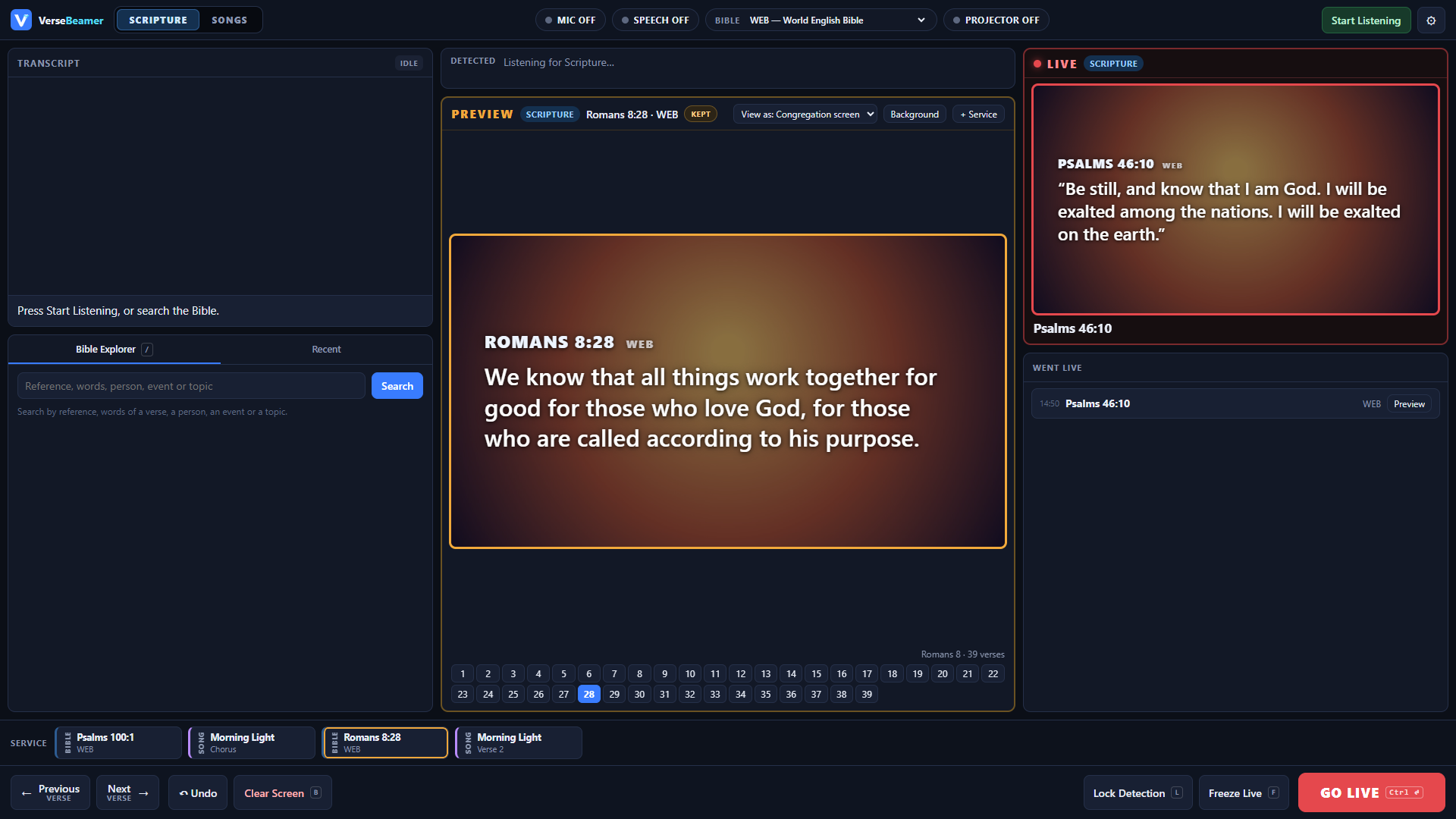
The operator console
Everything on one screen
Transcript and Bible search on the left, Preview in the middle, Live on the right, and the service running order along the bottom.
Features
Built for the moment the preacher says “turn with me to…”
Hears references as they are spoken
“Romans chapter eight, verse twenty-eight”, “John three, sixteen to eighteen” or simply “the next verse” — VerseBeamer follows the sermon and prepares the passage.
Recognises quoted Scripture
When a verse is quoted without its reference, VerseBeamer compares the words with the translations on your computer and suggests the passage it matches.
Changes translation on request
If the preacher asks for another translation, VerseBeamer prepares the passage in the requested translation, where that translation is available.
Fast Bible search
Find a passage by reference, by words from the verse, or by a person, event or topic — then pick the verse from a grid of the whole chapter.
Scripture and songs together
Separate Scripture and Songs workspaces share one Preview and one Live screen, and the service running order keeps the next item one click away.
Backgrounds and clear layouts
Verses are laid out for reading from the back of the room, on backgrounds you choose, with long passages split into readable pages.
Operator in control
VerseBeamer prepares. Your team decides.
Recognition saves the operator from typing under pressure, but it never takes the screen away from them. Clear colours show what is waiting and what the room can see: orange for Preview, red for Live.
- Preview
- Everything VerseBeamer recognises arrives in Preview first. Nothing reaches the congregation until the operator sends it.
- Go Live
- One click, a double-click or the Enter key puts exactly what is in Preview on every screen.
- Lock Detection
- Keep Preview as it is. New detections are still listed, but they no longer replace what is waiting in Preview.
- Freeze Live
- Keep the current Live verse in place: actions that would normally go straight to Live stop at Preview instead.
- Undo & Clear Screen
- Step back to the previous Live item, or clear the screen at once.
Every screen
One Live, wherever people are watching
What the operator sends live appears in the room and on the stream at the same time.
Main screen
Full-screen Scripture and song slides for the projector or main display in the room.
Livestream overlay
A browser-source output you can add to OBS Studio or vMix, so the verse appears on the stream as well as in the room.
More outputs
Add further outputs, each with its own display profile, from the same Preview and Live.
How it works
From spoken word to screen in four steps
- 1
Listen
Connect a microphone or a feed from your sound desk and press Start Listening.
- 2
Recognise
VerseBeamer turns speech into text and picks out references, quotations and requests such as “next verse”.
- 3
Preview
The passage appears in Preview, in the translation you are using, ready to check.
- 4
Go live
The operator sends it to every screen — or chooses something else.
FAQ
Questions churches ask
Does VerseBeamer put verses on screen by itself?
No. VerseBeamer prepares the passage in Preview; a person always decides what goes live. This keeps the operator in charge of what the congregation sees.
What do we need to run it?
A Windows PC, a microphone or an audio feed from your sound desk, and an internet connection while live speech recognition is running. Bible search and presenting work on the computer itself.
Which Bible translations can we use?
VerseBeamer works with open, public-domain translations such as the World English Bible (WEB), the American Standard Version (ASV) and the Berean Standard Bible (BSB). Copyrighted translations need a licence from their publisher — please contact us if your church needs one.
Can we use it for our livestream?
Yes. VerseBeamer provides an overlay output that can be added as a browser source in OBS Studio or vMix.
How can we get VerseBeamer?
Download the Windows installer from the Download page. Live speech recognition also needs your own AssemblyAI account and API key. Questions about using VerseBeamer at your church? Email admin@versebeamer.com.
Bring VerseBeamer to your church
Tell us about your services, your screens and your team, and we will reply by email.
Email admin@versebeamer.com